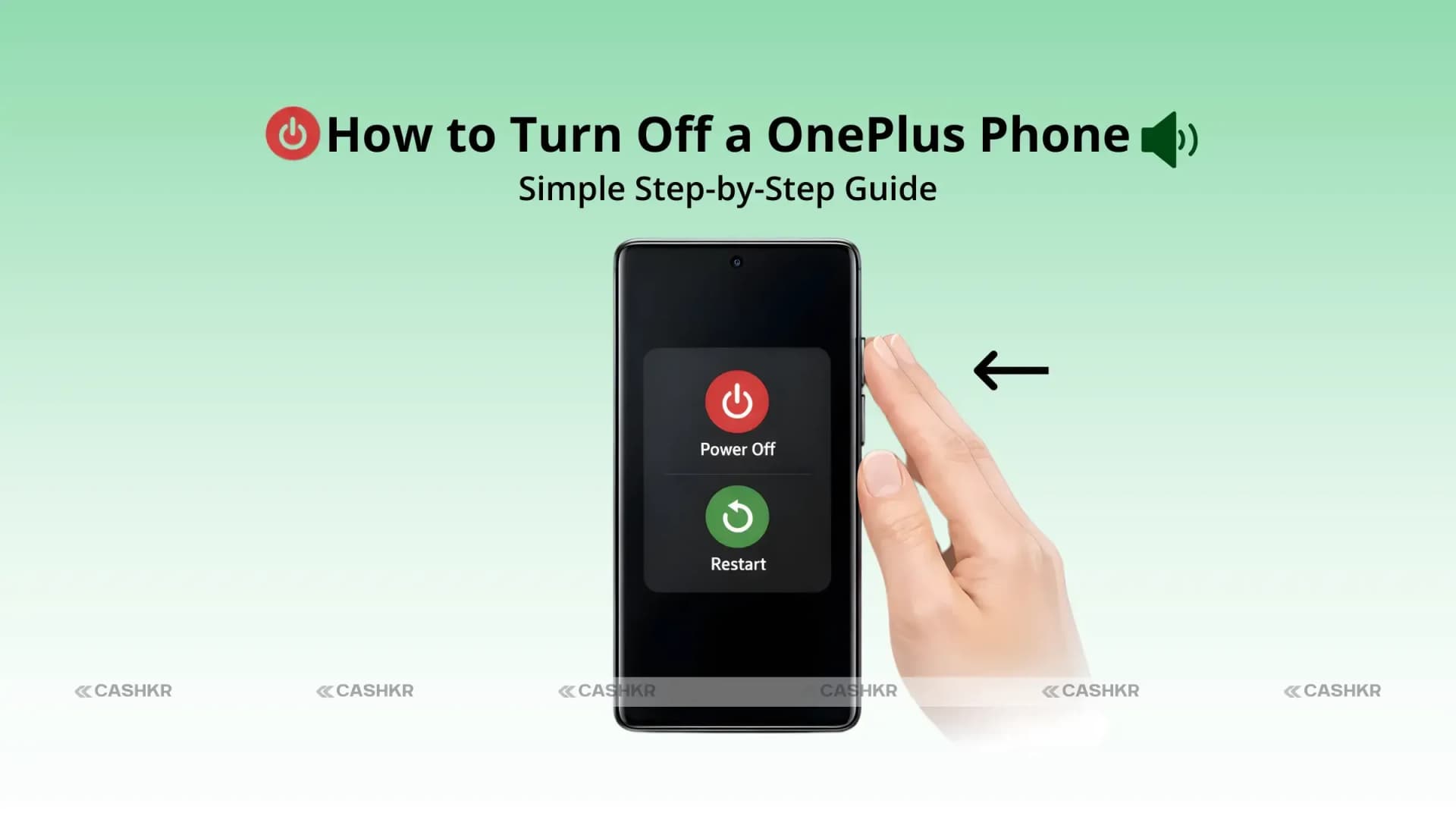
How to Turn Off a OnePlus Phone: Easy Step-by-Step Guide
Learn how to Turn Off a OnePlus Phone with this simple

Yaskar Jung Shah
Senior Tech Writer
Key Takeaways
Learn how to Turn Off a OnePlus Phone with this simple
How to Turn Off a OnePlus Phone: A Simple Step-by-Step Guide
If you are searching for how to turn off a OnePlus phone, you are not alone. Many OnePlus users—especially after recent OxygenOS updates—get confused because the power button does not always show the power menu.
Whether you want to save battery, fix lag issues, or simply take a break from notifications, knowing how to turn off a OnePlus phone is a basic but very useful skill.
In this guide, you will learn all possible methods to power off your OnePlus phone. You will find methods using button combinations, screen-based methods, accessibility features, and changes to phone settings. The methods are easy to understand and work for all latest OxygenOS versions.
Why You May Need to Turn Off a OnePlus Phone
Turning off your phone is not something you do daily, but it can help in many situations.
Save Battery
If you are traveling, facing power cuts, or not using your phone for hours, switching it off stops background apps and saves battery completely.
Fix Minor Issues
Slow performance, heating, app crashes, or screen lag can often be fixed just by restarting or powering off the phone.
Signal-Free Mode
Turning off your phone fully blocks all signals. This is useful during flights or when you want complete disconnection.
Safe Maintenance
Before software updates, SIM changes, or phone cleaning, powering off is always recommended.
That’s why knowing how to turn off a OnePlus phone quickly is important, especially in daily Indian usage scenarios.
Different Ways on How to Turn Off a OnePlus Phone
OnePlus phones run on OxygenOS, and the power-off method may differ slightly depending on your version (OxygenOS 12, 13, 14, 15, or 16). Below are all reliable methods.
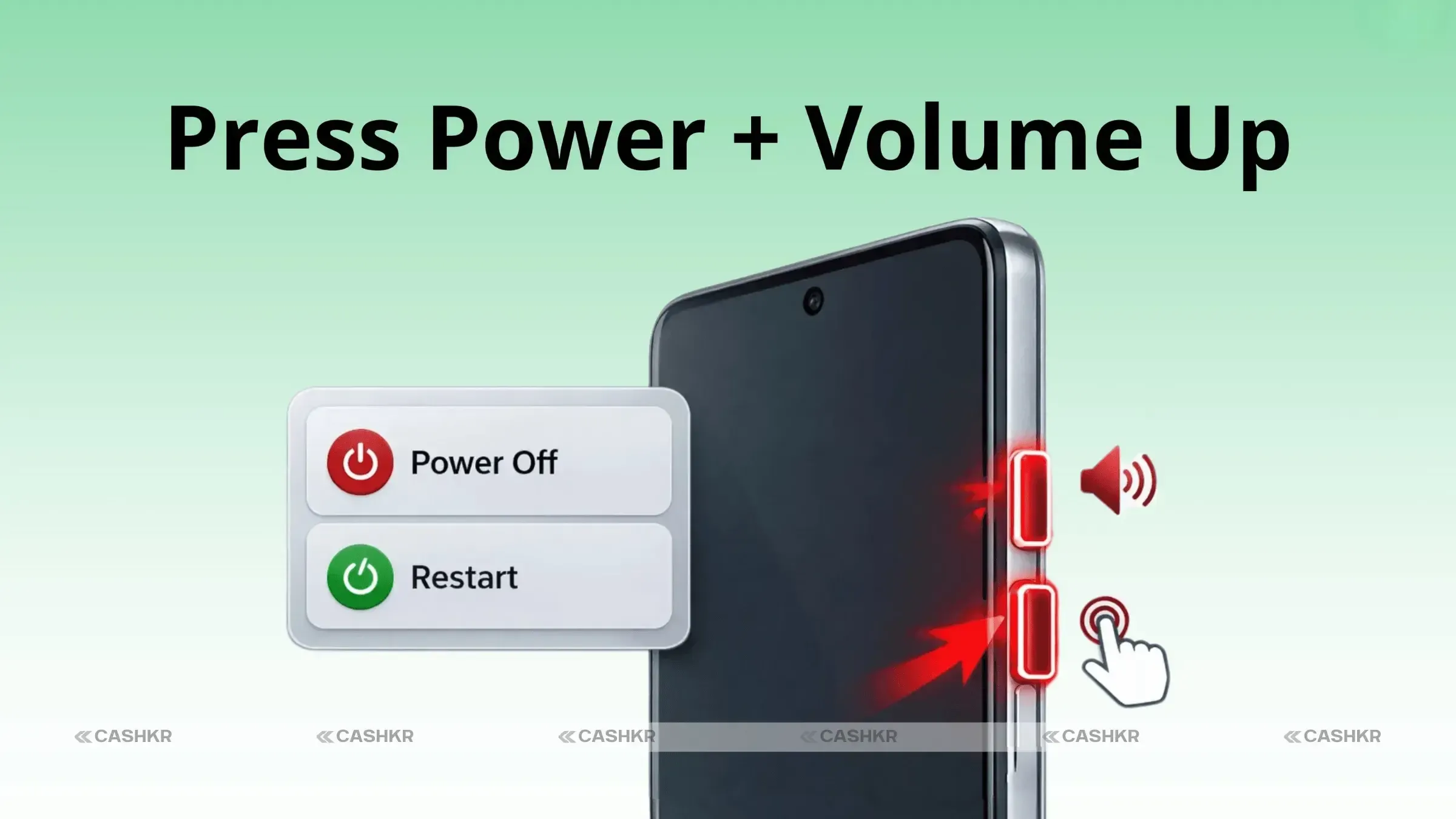
Method 1: Using Power + Volume Buttons (Most Reliable)
This is the most common and fastest method on newer OnePlus phones like the OnePlus 12, 13, 14, 15, and Nord series.
Steps
Press and hold the Power button + Volume Up together.
Hold for 1–2 seconds.
The power menu appears.
Tap Power off.
Confirm if required.
On some models, Power + Volume Down may work instead. Try both once.
This method works even if the screen is locked.
Also Read: Samsung Galaxy S26 Series Leaks: Price & S26 Ultra Details
Method 2: Using the Power Button Alone
In older OnePlus models, a long press on the power button directly showed the power menu. On newer OxygenOS versions, it may open Google Assistant instead.
Steps
Press and hold the Power button for 2–3 seconds.
If the power menu appears, tap Power off.
If the assistant opens instead, you’ll need to change the setting (explained later).
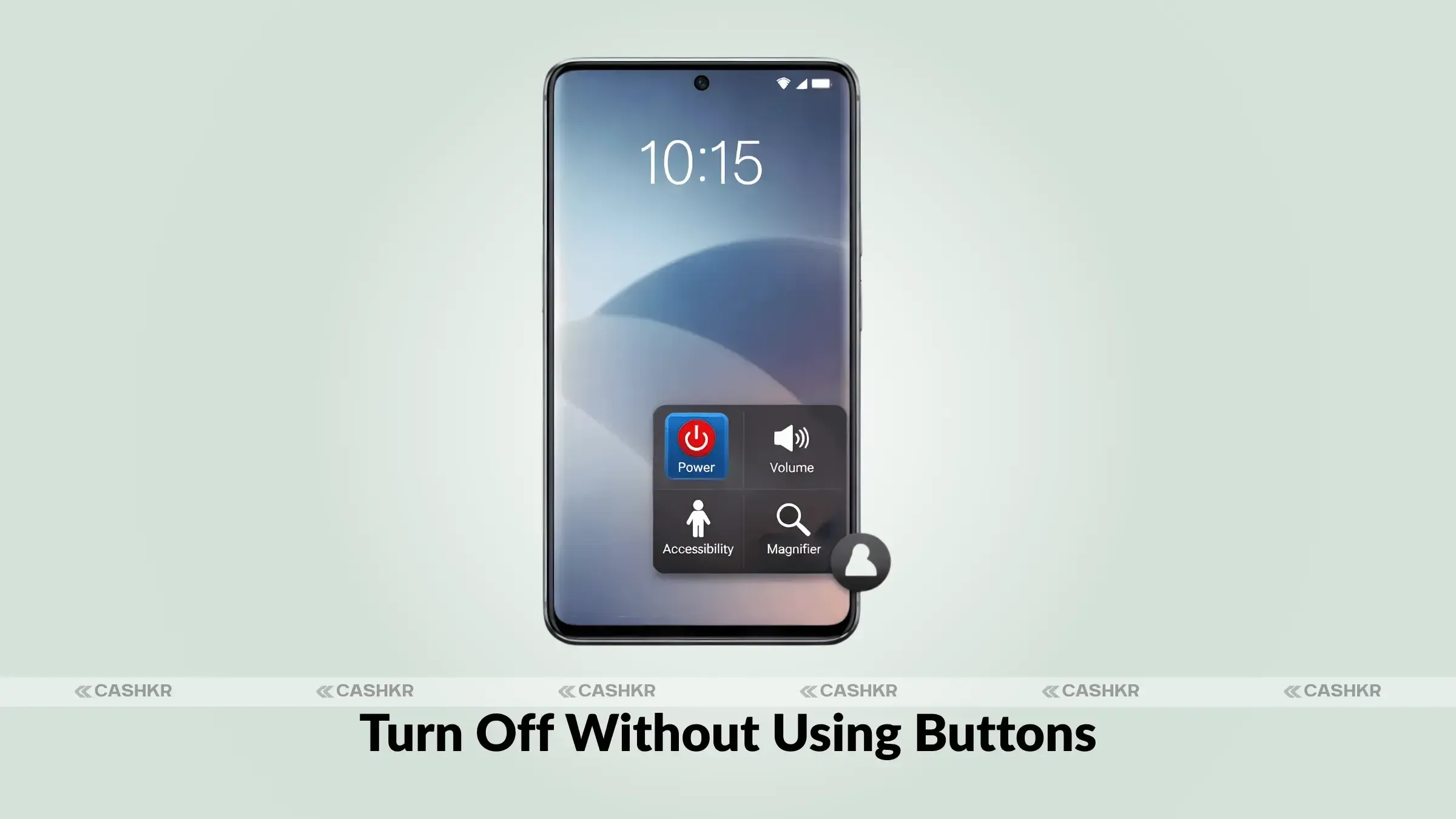
Method 3: How to Turn Off a OnePlus Phone Without Buttons
If your buttons are damaged or hard to press, OnePlus provides touch-based options.
Using the Quick Settings Power Icon
Swipe down twice from the top of the screen.
Look for the Power icon.
If not visible, tap the Edit (pencil) icon.
Add the Power tile.
Tap it and select Power off.
Note: Some OxygenOS versions may not show the power tile by default.
Also Read: Selling Old Gadgets Online: 5 Mistakes to Avoid
Method 4: Using the Accessibility Menu (Button-Free Method)
This is a great option if you prefer touch controls.
Enable Accessibility Menu
Go to Settings.
Open Accessibility & Convenience (or Accessibility).
Tap Accessibility Menu.
Turn on the shortcut (floating button or gesture).
Power Off Using Accessibility Menu
Open the Accessibility Menu.
Tap the Power icon.
Select Power off or Restart.
You can disable this later if not needed.
How to Turn Off a OnePlus Phone on the Latest OxygenOS (15 & 16)
Newer OxygenOS versions focus on security and gestures, so here’s the updated process.
Check Your OxygenOS Version
Go to Settings → About Phone.
Recommended Method
Press Power + Volume Up.
Tap Power off.
Wait 20–30 seconds for full shutdown.
If the Screen Is Frozen
Hold Power + Volume Down for 10–15 seconds.
Phone will force restart.
Then power it off normally.
Schedule Auto Power Off (Optional Feature)
You can also set your OnePlus phone to turn off automatically at night.
Steps
Go to Settings → Battery
Tap More settings
Select scheduled power on/off
Set a shutdown time
This is useful for battery health and distraction-free sleep.
How to Change Power Button Behavior on OnePlus
If your power button opens Google Assistant instead of the power menu, you can change it.
Steps
Open Settings
Search for the power button.
Tap and press and hold the power button.
Change it from Voice Assistant to Power Menu
Now, a long press will directly show the power-off option.
Tips Before Turning Off Your OnePlus Phone
Save important work
Back up data using Google Drive or OnePlus Switch
Ensure enough battery before updates
Remove charger before shutdown
These small habits prevent data loss.
Conclusion
Knowing how to shut down a OnePlus device is not a difficult task if you are aware of the methods that can be used. OnePlus has provided different methods of shutting down the device, and users can choose the one that best suits their needs.
If you are using the latest OxygenOS, the Power + Volume button method is the most reliable. For users with button issues, accessibility and on-screen options work just as well.
Learning these steps ensures better phone control, improved performance, and fewer surprises when your device acts up.
FAQs
1. How to turn off a OnePlus phone using buttons?
To turn off your OnePlus phone using buttons, press and hold the Power + Volume Up buttons simultaneously. The power menu will appear, then tap Power off to confirm. This method works on most of the latest OnePlus models, including OnePlus 13 and OnePlus Nord.
2. Why does my OnePlus power button open Google Assistant?
It's likely that the default settings in newer versions of OxygenOS are to blame if you press the power button and Google Assistant opens. To change this, go to Settings > Buttons & gestures, press and hold the power button, and choose Power menu instead of Voice Assistant.
3. Can I turn off my OnePlus phone without using buttons?
Yes, you can turn off your OnePlus phone without using buttons by using the Accessibility menu or Quick Settings. Enable the Accessibility menu in Settings, then tap the Power icon to turn off. Alternatively, you can add a power option to the Quick Settings panel.
4. How do I restart a OnePlus phone?
Press and hold the Power and Volume Up buttons to get to the power menu. From there, tap Restart to restart your OnePlus phone. If the screen is frozen, hold down the Power and Volume Down buttons until the phone restarts, or you can turn it off.
5. How to turn off OnePlus Nord series phones?
The methods for turning off OnePlus Nord series phones are the same as other OnePlus phones. You can use the Power + Volume Up buttons, the Accessibility menu, or the Quick Settings panel to power off your device.
6. What if my OnePlus phone is frozen?
If your OnePlus device is frozen, you can try pressing the Power + Volume Down buttons for 10-15 seconds to force a restart. This will turn off your OnePlus device, and then you can normally restart it. This is the best way to handle such situations.
7. Is a scheduled power-off available on the OnePlus?
Yes, OnePlus phones have a feature that lets you set when to turn off the power. You can discover this option by going to Settings, then Battery, and then Scheduled power on/off. This tip can help you save power by letting you specify a specified time for your phone to switch off and on automatically.
8. Does turning off the phone save battery?
Yes, turning off the phone save battery by stopping all background processes and apps from running. This can significantly extend your battery life, especially if you're not using your OnePlus device for an extended period. Also, the screen won't consume any power at all.
9. Is it safe to turn off my phone daily?
Yes, it is generally safe to turn off your phone daily. Regularly turning off your phone can help clear temporary files and improve overall system performance. But doing this all the time might not be the greatest for the OnePlus smartphones.
10. Which is the best method to power off a OnePlus phone?
The most effective way to turn off a OnePlus device is often by using the Power + Volume Up buttons, which is very efficient. But if your buttons are not functioning as they should, you can use the Accessibility menu or the Quick Settings.
If you want to sell your old devices, click here.
Yaskar Jung Shah
Senior Tech Writer
Yaskar Jung Shahis a technology enthusiast with over 5 years of experience covering AI, machine learning, and has contributed to major tech publications worldwide. He holds a Master's Degree in Computer Science from leading institutions.